
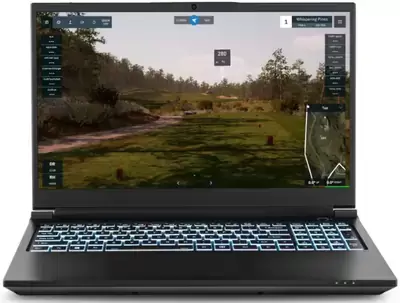
Golf simulator PC requirements depend almost entirely on which software you run. GSPro publishes a GTX 1070 as its 1080p minimum. Trackman asks for an RTX 4070 Ti class card, 32GB of RAM, and Windows 11. Square Golf lists 4GB of RAM and no graphics card at all. Find your program in the list below and check your PC against its table.
If you run more than one program, buy for the highest requirement among them. Most publishers list a 1080p figure and a 4K figure, and the graphics card is the spec that changes most between them, so it is the one to spend on.
- 1.GSPro
- 2.Trackman
- 3.Uneekor
- 4.FSX Play
- 5.E6 Connect and E6 Apex
- 6.Square Golf
- 7.The Golf Club 2019
Which Software Do You Run?
Your launch monitor usually decides this. Trackman units run Trackman’s own software, Foresight and Bushnell monitors run FSX Play, and Uneekor units run VIEW or Refine along with supported third-party programs such as GSPro. Square ships with its own software included. If you have not picked hardware yet, start with our golf simulator software guide or our home golf simulator guide, and see our launch monitor survey for the hardware side.
PC Requirements by Software
The golf simulator computer specs below come from each publisher’s own page where one exists, and from retailer support pages where the publisher does not publish figures. The source sits underneath each table, and the notes call out places where sources disagree.
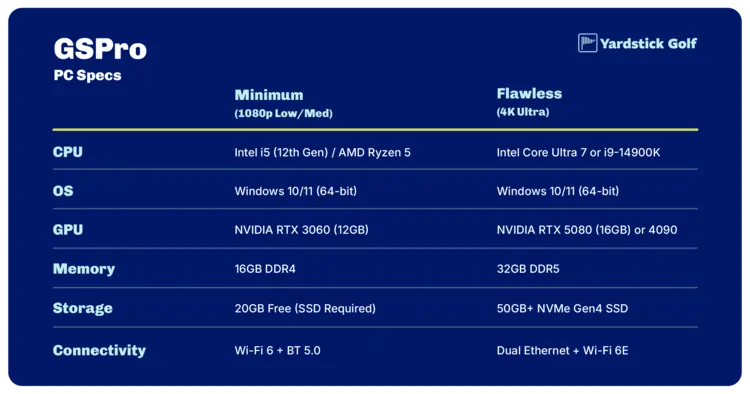
GSPro
| Spec | 1080p minimum | Comfortable 1080p | 4K |
|---|---|---|---|
| GPU | GTX 1070 (RX 580 also listed by one retailer) | RTX 3060 Ti or RTX 3070 | RTX 3080 or better |
| RAM | 8GB (Rapsodo summary) | 16GB (Rapsodo, Full Swing) | 32GB (Rapsodo, Full Swing) |
| CPU | Intel i5 or AMD equivalent | Intel i5 | Intel i7 or better recommended |
| Storage | 10GB free (KB), 20GB (Rapsodo) | 20GB for best performance (Full Swing) | 20GB (Full Swing), 40GB (KB) |
| OS | Windows 10 or 11 | Windows 10 or 11 | Windows 10 or 11 |
Source: GSPro knowledge base, with retailer summaries from Rapsodo and Full Swing marked in the table.
The GSPro system requirements vary by source on storage and RAM, so both versions are shown above. GSPro runs on Windows only, per PlayBetter, and it needs a stable internet connection during play. The launch monitor link runs over Ethernet or Bluetooth depending on the monitor, per Carl’s Place’s license page.
Trackman
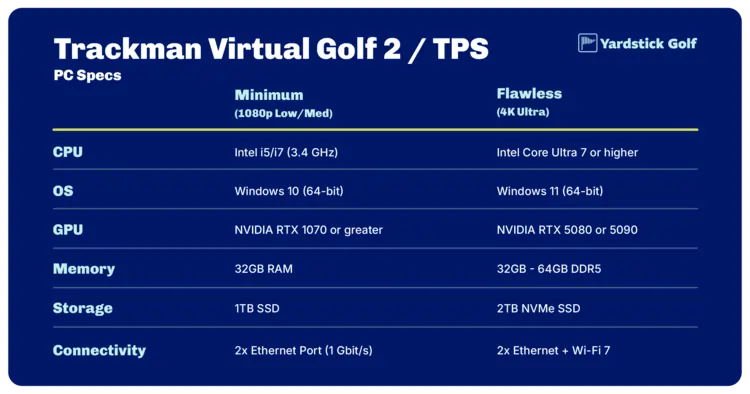
| Spec | Trackman iO / Duo | Trackman 4 | 4K setup |
|---|---|---|---|
| OS | Windows 11 (64-bit) | Windows 11 (64-bit) | Windows 11 (64-bit) |
| RAM | 32GB | 32GB | 32GB |
| CPU | Intel i7 3.4GHz or Intel Core Ultra 7 | Same | Same |
| GPU | RTX 4070 Ti or 4070 Ti Super, or RTX 5070 Ti | Same | RTX 4080, 4080 Super, or 4090, or RTX 5080 or 5090 |
| Storage | 1TB SSD | 1TB SSD | 1TB SSD |
| Ethernet | 2x 1Gbit/s ports | 1 Ethernet port plus Wi-Fi | Depends on unit |
Source: Trackman support, Required PC Specs for TM4 and TMiO.
The Trackman PC requirements sit above every other program on this page, with Windows 11 (64-bit) and 32GB of RAM across all three columns. Trackman states that TPS does not support Intel Iris Xe graphics, AMD processors or GPUs, or ARM hardware, and that other specs will require adjusting settings or lowering resolution. The older tech-specs page still shows Windows 10 with RTX 4070 Ti and RTX 4090 figures. It also lists a laptop spec for Trackman 4 (Intel i7 2.5GHz, RTX 2060, plugged in, cooling pad recommended) and none for Trackman iO.
Uneekor
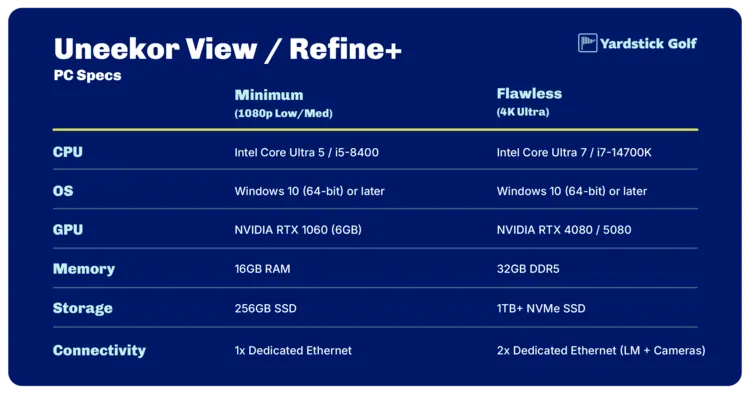
| Spec | Help center page (current) | Older support article, minimum | Older support article, recommended |
|---|---|---|---|
| CPU | Intel Core Ultra 7, Intel Core i7 (12th Gen or later), or AMD Ryzen 7 (5000 Series or later) | Intel Core i5-8400 | Intel Core i7, 10th generation |
| RAM | 32GB | 16GB (32GB for Swing Optix) | 32GB |
| GPU | NVIDIA RTX 4070 Ti or equivalent | NVIDIA GTX 1060 | NVIDIA RTX 30 series |
| GPU memory | 16GB (VIEW and AI-Trainer only) | 6GB | 16GB |
| Storage | 200GB available | 30GB available | 200GB available |
| OS | Windows 11 Home or Pro (64-bit), version 22H2 | Windows 10 (64-bit), version 1803 | Windows 11 |
| Ethernet | 1 or more (one required for launch monitor) | 1 | 2 (one for launch monitor, one optional for internet) |
| Internet | 25 Mbps or higher | 1 Mbps | 25 Mbps |
Sources: Uneekor help center (labeled current) and Uneekor support article (older). The two pages disagree, so the table shows both until the current figures are confirmed.
The Uneekor PC requirements rule out Mac and Linux, and an internet connection is required to validate licenses. The VIEW Air app for the EYE MINI runs on an iPad rather than a PC: iPad Air 2, iPad mini 4, iPad 5th generation, or any iPad Pro, on iPadOS 14.
FSX Play
| Spec | Minimum | Recommended |
|---|---|---|
| OS | 64-bit Windows 10 or greater | Same |
| CPU | Intel (AMD CPUs not recommended) | Same |
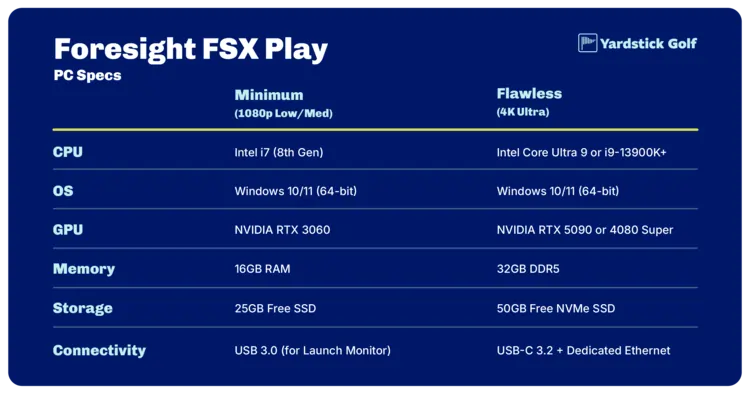
| RAM | 8GB | 16GB or more for Swing Camera or Swing Catalyst use |
| GPU | RTX 3060 or greater (support page), or GTX 1060 or RTX 2060 (help center article) | RTX 3070 Ti, 3080, or 3090 (support page), or RTX 3070 Ti, 3080, 3090, or newer (help center article) |
Sources: Foresight support, FSX Play and Foresight help center, Optimizing PC and Software for Performance.
The FSX Play system requirements differ between Foresight’s two pages on the GPU line, so both versions appear above. Foresight states that AMD CPUs and GPUs are not recommended or supported, and that it can only support PCs meeting its minimum requirements, not custom builds that deviate significantly from its recommended configurations. FSX Play and FSX 2020 run on PC only. FSX Pro also runs on an iPad, per PlayBetter.
E6 Connect and E6 Apex
| Spec | E6 Connect Home | E6 Apex |
|---|---|---|
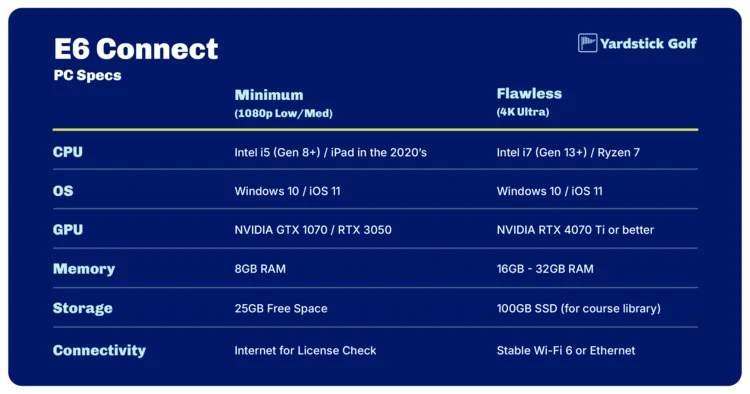
| CPU | Intel i5 | Intel i7 (10th Gen or later) |
| RAM | 8GB | 16GB |
| GPU | NVIDIA 1070 or better (DirectX 11) | NVIDIA RTX 3060 or better |
| OS | Windows 10 (64-bit) | Windows 10 (64-bit) |
Source: Shop Indoor Golf support table, with platform details from PlayBetter.
The E6 Connect system requirements cover two products at once here: Connect Home is the lighter tier, and Apex is the step up. E6 Connect also runs on supported iPads, so check TruGolf for current models, and E6 Apex runs on PC only.
Square Golf
| Spec | Requirement |
|---|---|
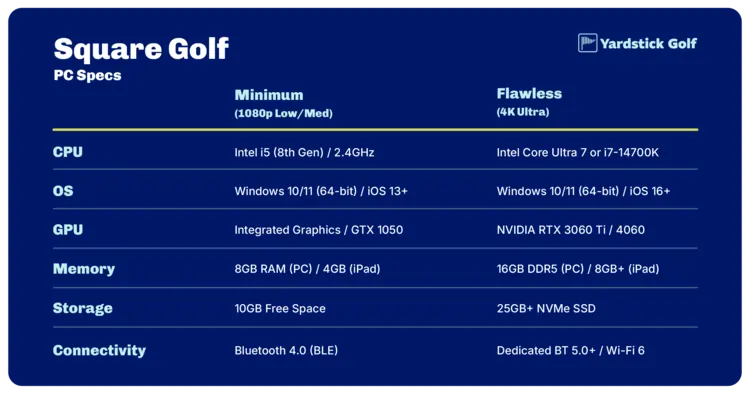
| PC OS | Windows 11, or Windows 10 (version 2004, OS build 19041 or later) |
| Phone and tablet | iOS 13 or later, Android 10 or later |
| CPU | 2.4GHz (Shop Indoor Golf) |
| RAM | 4GB (Shop Indoor Golf) |
| GPU | None listed |
Sources: PlayBetter, Square Golf launch monitor and Shop Indoor Golf support table.
The Square Golf PC requirements are the lightest on this page, and Square’s own software is included with the monitor as a free PC download, per PlayBetter. The monitor connects over Bluetooth. If you plan to run GSPro or E6 software with a Square, follow that program’s requirements instead, because the list above covers Square’s own software only.
The Golf Club 2019 (TGC 2019)
| Spec | TGC 2019 minimum | TGC 2019 recommended |
|---|---|---|
| CPU | Intel Core i5 or equivalent | Intel Core i7 at 3.20GHz or equivalent |
| RAM | 4GB | 8GB |
| GPU | NVIDIA GTX 670 or AMD 7850 with 2GB | NVIDIA GTX 1060 or better (GTX 1080 or better for 4K) |
| OS | Windows 8, 8.1, or 10 | Windows 10 (64-bit) |
| Storage | 30GB | 30GB |
Sources: Shop Indoor Golf TGC page and the Shop Indoor Golf support table.
TGC 2019 runs on PC only. Two other programs appear in some packages: Creative Golf 3D lists a 2.5GHz or better processor, 2GB of RAM, a dedicated graphics card with 1GB of VRAM, and Windows 7, 8, or 10 (64-bit), per Shop Indoor Golf, and Awesome Golf ships in iOS, Android, and PC versions.
Software Side by Side
| Software | Operating system | Graphics card floor | RAM | AMD supported? | Notes |
|---|---|---|---|---|---|
| GSPro | Windows 10 or 11 | GTX 1070 (RX 580 also listed by one retailer) | 8GB minimum (Rapsodo summary) | Yes: AMD CPU listed as equivalent, RX 580 listed as alternative minimum | Storage and RAM figures vary by source |
| Trackman | Windows 11 (64-bit) | RTX 4070 Ti, 4070 Ti Super, or 5070 Ti | 32GB | No: AMD CPUs and GPUs not supported | 1TB SSD and Ethernet ports required, Intel Iris Xe and ARM hardware excluded |
| Uneekor | Windows 11 22H2 (current page), Windows 10 (older article) | RTX 4070 Ti or equivalent (current page), GTX 1060 (older minimum) | 32GB (current page), 16GB (older minimum) | AMD Ryzen 7 CPUs listed on current page, GPU listed as NVIDIA or equivalent | 200GB storage and 25 Mbps internet on current page, Mac and Linux not supported |
| FSX Play | 64-bit Windows 10 or greater | RTX 3060 (support page), GTX 1060 or RTX 2060 (help center) | 8GB, 16GB for Swing Camera or Swing Catalyst | No: AMD CPUs and GPUs not recommended or supported | Custom builds that deviate significantly are unsupported |
| E6 Connect Home | Windows 10 (64-bit) | NVIDIA 1070 or better (DirectX 11) | 8GB | Not stated | Also runs on supported iPads |
| E6 Apex | Windows 10 (64-bit) | NVIDIA RTX 3060 or better | 16GB | Not stated | PC only |
| Square Golf | Windows 11, or Windows 10 version 2004 or later | None listed | 4GB | Not stated | Also runs on iOS 13 or later and Android 10 or later, connects over Bluetooth |
| TGC 2019 | Windows 8, 8.1, or 10 | GTX 670 or AMD 7850 with 2GB | 4GB minimum | Yes: AMD 7850 listed at minimum | 30GB storage, PC only |
Where two sources disagree, the table shows both versions. Check the publisher’s page before you buy.
Pick Your Specs by Resolution
The resolution you project at decides which tier of golf simulator PC specs you need, and the graphics card is where publishers draw their lines.
| Resolution | GSPro | Trackman | Foresight (FSX Play) | Uneekor |
|---|---|---|---|---|
| 1080p minimum | GTX 1070 (RX 580 also listed by one retailer) | Not listed | Not listed (minimum tier: RTX 3060, or GTX 1060 or RTX 2060) | Not listed |
| 1080p comfortable | RTX 3060 Ti or RTX 3070 | Not listed | Not listed | Not listed |
| 4K | RTX 3080 or better | RTX 4080, 4080 Super, or 4090, or RTX 5080 or 5090 | Not listed | Not listed |
Only GSPro labels its figures by resolution outright. Trackman publishes one base spec and a separate 4K spec. Foresight publishes minimum and recommended tiers with no resolution attached, and Uneekor’s current page lists a single spec set, RTX 4070 Ti or equivalent.
If you run more than one program, size the PC for the highest requirement among them. A golfer who runs GSPro and Trackman software buys for the Trackman row, since a PC built to Trackman’s 4K column clears GSPro’s RTX 3080 threshold as well.
Aim at least at a program’s recommended specs, and ideally a notch above. That is our opinion on headroom, not a publisher requirement.
Windows 11 is the safer operating system choice for a new build. Microsoft ended support for Windows 10 on October 14, 2025, and while most publishers on this page still list Windows 10, Trackman and Uneekor now list Windows 11.
How to Check Your PC
- Processor and RAM: Press the Windows key, type “About your PC,” and open the result. The Device specifications panel names the processor and lists installed RAM.
- Graphics card: Press Ctrl + Shift + Esc to open Task Manager and select the Performance tab. Click CPU, Memory, and GPU in the left rail. The GPU entry names the graphics card, which is the spec to check first.
- Adapter detail: Press Windows key + R, type dxdiag, and press Enter. The System tab repeats the processor and memory, and the Display tab names the graphics adapter and its video memory.
Tip: on a laptop with two graphics processors, open the Performance tab while the simulator software runs and confirm the dedicated card, not the integrated one, shows activity. Compare what you find against the tables above.
Intel, AMD, and NVIDIA: Compatibility Notes
Trackman and Foresight draw the sharpest brand lines. Trackman states that TPS does not support AMD processors or GPUs, and it also excludes Intel Iris Xe graphics and ARM hardware. Foresight states that AMD CPUs and GPUs are not recommended or supported.
AMD still appears elsewhere on this page. GSPro’s minimum CPU row reads Intel i5 or AMD equivalent, one retailer lists the AMD RX 580 as an alternative minimum card, and Uneekor’s current page names AMD Ryzen 7 (5000 Series or later) processors. Uneekor lists its graphics requirement as NVIDIA RTX 4070 Ti or equivalent.
When in doubt, Intel plus NVIDIA is the safest combination across the programs on this page.
Desktop or Laptop
Golf simulator laptop requirements match desktop requirements for most programs on this page, with publisher exceptions noted below.
| Factor | Desktop | Laptop |
|---|---|---|
| Performance per dollar | Strong | Moderate |
| Portability | Low | High |
| Upgrade options | Excellent (GPU, RAM, storage) | Limited (usually RAM and storage only) |
| Best for 4K and multi-display | Yes | Sometimes, with high-end models |
| Setup complexity | Higher (more parts and cables) | Lower |
- Desktop pros: more performance for the money, easier GPU and RAM upgrades.
- Desktop cons: not portable, more cables and a permanent footprint.
- Laptop pros: moves between rooms and doubles as a work or school machine.
- Laptop cons: costs more for the same performance, limited upgrade paths, runs hotter under load.
Two publisher notes matter here. Trackman’s older tech-specs page lists a laptop spec for Trackman 4 (Intel i7 2.5GHz, RTX 2060, plugged in, cooling pad recommended) and no laptop option for Trackman iO. Foresight states that it can only support PCs that meet its minimum requirements and does not support custom builds that deviate significantly from its recommended configurations.
Ports, Network, and Video Connections
Two programs on this page require wired networking. Uneekor lists at least one Ethernet port, with one needed for the launch monitor, and 25 Mbps or higher internet on its current page. Trackman lists two 1Gbit/s ports for iO and Duo, and one Ethernet port plus Wi-Fi for Trackman 4.
For the screen, plan an HDMI or DisplayPort run from the PC to the projector, and see our golf simulator projector guide for resolution and throw questions. USB covers cameras and some launch monitors, Square connects over Bluetooth, and GSPro connects to the monitor by Ethernet or Bluetooth depending on the model.
Don’t exceed recommended cable lengths for video runs, and look at active cables or extenders if you need to go long. Label cables at both ends so you know what goes where when you move things.
Three Build Profiles
The three profiles below are Yardstick suggestions, our opinion on sensible targets rather than publisher requirements. Every figure is drawn from the publisher tables above, and our approach to ratings is on our how-we-rate page.
High-end (runs every program here, including 4K)
| Spec | Yardstick suggestion |
|---|---|
| GPU | RTX 4080 or better |
| CPU | Intel Core Ultra 7, or Intel i7 at 3.4GHz |
| RAM | 32GB |
| Storage | 1TB SSD |
| OS | Windows 11 (64-bit) |
| Network | Two Ethernet ports |
This mirrors Trackman’s 4K column, the highest bar on this page, so every program above runs on it. It is the profile to build if you might switch software later.
Value (comfortable 1080p and recommended tiers)
| Spec | Yardstick suggestion |
|---|---|
| GPU | RTX 3070 Ti |
| CPU | Intel i7 (10th Gen or later) |
| RAM | 16GB |
| Storage | 200GB free |
| OS | Windows 11 |
An RTX 3070 Ti clears GSPro’s comfortable 1080p tier, Foresight’s recommended floor, and E6 Apex, and 16GB of RAM matches the same tiers. It does not meet Trackman or Uneekor’s current pages, which both ask for RTX 4070 Ti class cards and 32GB of RAM.
Minimum (lightest programs at their stated minimums)
| Spec | Yardstick suggestion |
|---|---|
| GPU | GTX 1070 |
| CPU | Intel i5 |
| RAM | 8GB |
| Storage | 40GB free |
| OS | Windows 10 or 11 |
This meets the stated minimums for GSPro at 1080p, E6 Connect Home, Square, and TGC 2019. It does not meet Trackman’s current requirements or Uneekor’s current page, so owners of those systems should skip it, and whether it runs FSX Play depends on which Foresight figure applies.
Pre-built simulator PCs exist if you would rather skip the spec sheet: SurfThing lists its SG3 line from $2,249 (SG3-5602, RTX 5060, 16GB RAM, 1TB) to $4,699 (SG3-5802, RTX 5080, 32GB RAM, 2TB), per surfthing.com in October 2026. Product picks for each profile are on our golf simulator computer page.
Fixing Lag and Stutter
Run down this list before you conclude the PC is underpowered:
- Confirm the dedicated GPU is in use. Open Task Manager’s Performance tab while the software runs.
- Update your graphics drivers to the latest version.
- Run the projector or monitor at its native resolution.
- Close background apps before a session.
- Lower the in-software graphics settings, starting with shadows, foliage, and anti-aliasing.
- Drop from 4K to 1080p to test whether resolution is the problem.
Golf Simulator PC FAQ
Do I need a gaming PC for a golf simulator?
The cards these programs name are the cards gaming PCs use. GSPro lists a GTX 1070 at its 1080p minimum, E6 Connect Home lists a 1070 or better, and FSX Play lists an RTX 3060. Trackman and Uneekor’s current pages sit far higher, at RTX 4070 Ti class. So yes, a gaming-class PC is the practical answer for most software, and a basic office PC with integrated graphics usually does not qualify.
Can I use a laptop?
Yes for most programs. GSPro, FSX Play, E6, Square, and TGC 2019 do not separate desktop from laptop hardware, so a laptop that meets the table works. Trackman is the exception: its older tech-specs page lists a laptop spec for Trackman 4 (Intel i7 2.5GHz, RTX 2060, plugged in, cooling pad recommended) and no laptop option for Trackman iO. On any laptop, confirm the dedicated GPU is the one doing the work.
Can I run a golf simulator on a Mac?
The major programs rule it out. GSPro is Windows-only, FSX Play and FSX 2020 are PC-only, Uneekor does not support Mac or Linux, and TGC 2019 runs on PC only. iPads are the named exception: E6 Connect runs on supported iPad models, FSX Pro runs on an iPad, Uneekor’s VIEW Air runs on listed iPads, and Square’s software runs on iOS 13 or later.
Do I need an AMD or an Intel processor?
Intel is the safe default across this page. Trackman does not support AMD processors, and Foresight does not recommend AMD CPUs. AMD works elsewhere: GSPro lists Intel i5 or AMD equivalent at minimum, and Uneekor’s current page names AMD Ryzen 7 (5000 Series or later). Match the processor to your software’s table, and note that AMD graphics cards face stricter limits than AMD processors on Trackman and Foresight.
How much RAM do I need?
It depends on the tier. Square lists 4GB and TGC 2019 lists 4GB minimum. 8GB meets the minimums for GSPro, E6 Connect Home, and FSX Play. 16GB covers the comfortable 1080p and recommended tiers most publishers list, and E6 Apex asks for 16GB. Trackman and Uneekor’s current pages list 32GB, the highest on this page.
Can integrated graphics run golf simulator software?
Usually no. The publishers that name a graphics card all list dedicated NVIDIA GeForce cards, and Trackman explicitly excludes Intel Iris Xe integrated graphics. Square Golf is the exception: it lists no GPU requirement, 4GB of RAM, and a 2.4GHz processor, and its software also runs on phones and tablets. For everything else, plan on a dedicated card.
Is Wi-Fi enough, or do I need Ethernet?
Check your launch monitor first. Uneekor requires an Ethernet port for the launch monitor and lists 25 Mbps or higher internet on its current page. Trackman lists two 1Gbit/s ports for iO and Duo and an Ethernet port plus Wi-Fi for Trackman 4. GSPro needs a stable internet connection and connects to the monitor by Ethernet or Bluetooth depending on the model. Square connects over Bluetooth.
Can I use the PC I already own?
Run the three checks in the how-to section above, then compare the results to your software’s table. Meeting the minimum means the publisher claims support, with two caveats: Foresight only supports PCs that meet its minimums and not custom builds that deviate from recommended configurations, and Trackman says other specs will require adjusting settings or lowering resolution. Yardstick suggestion: aim for the recommended tier or one notch above.
Will Windows 10 still work?
By the letter of most tables, yes. Microsoft ended Windows 10 support on October 14, 2025, yet GSPro, Foresight, E6, Square, and TGC 2019 still list Windows 10 in their requirements. Trackman and Uneekor now list Windows 11. For a new build, Windows 11 is the safer choice, and it is required outright if Trackman or Uneekor’s current page applies to you.
Sources
Requirements change when software updates, so check the publisher page before you buy. Every page cited above:
- GSPro knowledge base, What PC requirements do I need to run GSPro
- GSPro site
- Rapsodo, MLM2PRO and GSPro integration
- Full Swing, GSPro and Full Swing KIT
- Trackman support, Required PC Specs for TM4 and TMiO
- Trackman tech specs (older page)
- Uneekor help center, system requirements
- Uneekor support article (older)
- Foresight support, FSX Play
- Foresight help center, Optimizing PC and Software for Performance
- Shop Indoor Golf support table, PC and device requirements
- Shop Indoor Golf, TGC 2019 system requirements
- PlayBetter, TruGolf LaunchBox (E6)
- PlayBetter, Square Golf launch monitor requirements




One Comment